This page completes TradingView webhook automation into Binance. Configure the alert, message JSON, and webhook URL — then validate results in TradeAdapter.
Video
Watch the TradingView setup walkthrough
Use a Binance symbol on TradingView
On your chart, confirm the symbol is from Binance. For this route, use SPOT or SWAP symbols only.

Add a Pine strategy to the chart
Open Pine Editor, add your strategy code, and click Add to chart. TradeAdapter automation works with Pine strategies (not indicator-only alerts by default).

Create a TradingView strategy alert
In Strategy Tester, verify results, then click Create Alert on the strategy so buy/sell events can automate TradingView alerts to TradeAdapter.

Set alert message and webhook URL
Paste your JSON alert payload in the Message tab, then add your TradeAdapter webhook URL under Notifications (TradingView Pro or Pro+).
- Build JSON with the Message Generator or the template below
- Copy your personal webhook URL from your Profile after you sign in


Verify execution on My Trades
After an alert fires, open My Trades to confirm TradeAdapter received the webhook and routed the order for real-time trade execution visibility.

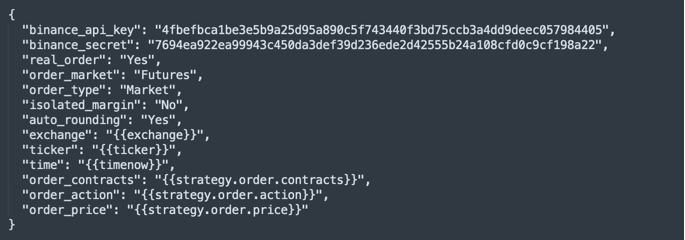
TradingView alert message template
Replace only the credential and routing fields. TradingView auto-fills strategy placeholders when the alert triggers.
{
  "binance_api_key": "PUT YOUR BINANCE API KEY HERE",
  "binance_secret": "PUT YOUR BINANCE SECRET HERE",
  "real_order": "Yes / No",
  "order_market": "Spot / Margin / Futures",
  "order_type": "Market / Limit",
  "isolated_margin": "Yes / No",
  "auto_rounding": "Yes",
  "exchange": "{{exchange}}",
  "ticker": "{{ticker}}",
  "time": "{{timenow}}",
  "order_contracts": "{{strategy.order.contracts}}",
  "order_action": "{{strategy.order.action}}",
  "order_price": "{{strategy.order.price}}",
  "market_position": "{{strategy.market_position}}",
  "market_position_size": "{{strategy.market_position_size}}",
  "prev_market_position": "{{strategy.prev_market_position}}",
  "prev_market_position_size": "{{strategy.prev_market_position_size}}"
}
Field reference
- binance_api_key / binance_secret
- Credentials from page 1 (live Binance or Futures testnet path).
- real_order
- Yes for live Binance.com orders; No for test flows (see Test orders).
- order_market / order_type
- Choose Spot, Margin, or Futures and Market or Limit routing.
- auto_rounding
- Keeps size and price aligned with Binance filters.
- exchange, ticker, order_*
- Populated automatically by TradingView at alert time.
How test orders work
- Spot: test orders still use your live Binance.com API credentials.
- Margin: Binance does not support test orders — validate with the smallest live size.
- Futures: use Binance Futures testnet credentials from the Futures testnet API path and set
real_orderto No.